Scripts and Macros in Photoshop
Install Document Cleaner 2.0 Macros
- Download Document Cleaner 2.0
- Click on downloaded file.
How to Batch Convert Files to JPG in Photoshop
If you haven't already installedDocument Cleaner 2.0, please do so before proceeding beyond this point.
- Open the files you want to convert in Photoshop. Right-click on the file(s) you want to convert, and open with Photoshop.
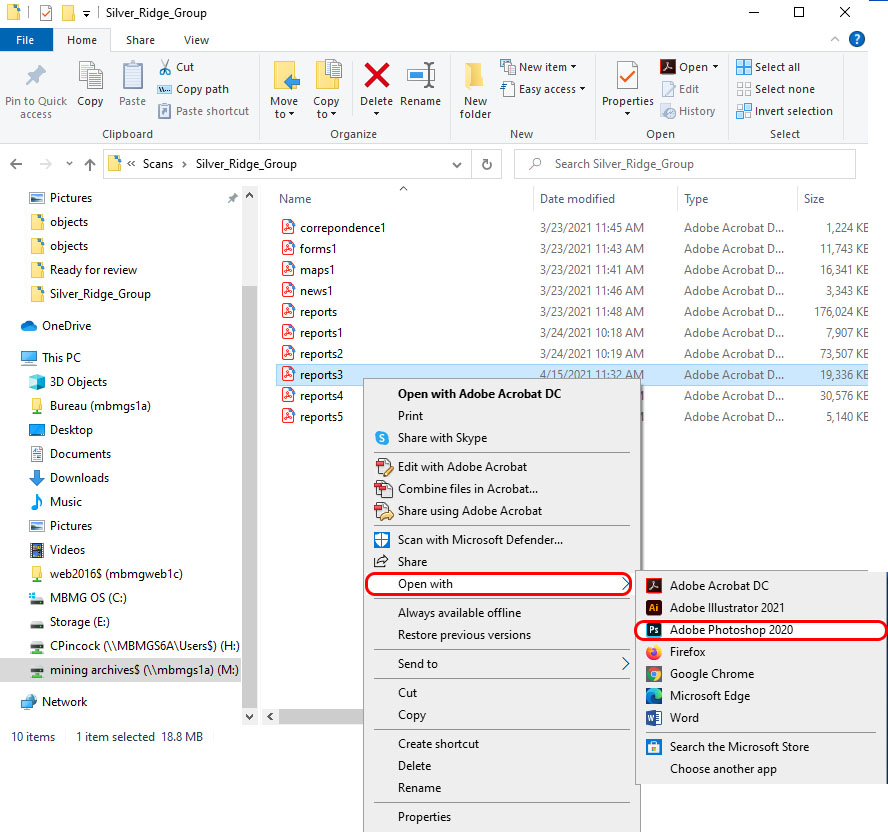
- *For opening PDF files only* Click the first page and hold the
Shiftkey and select the last page. This will select all of the pages.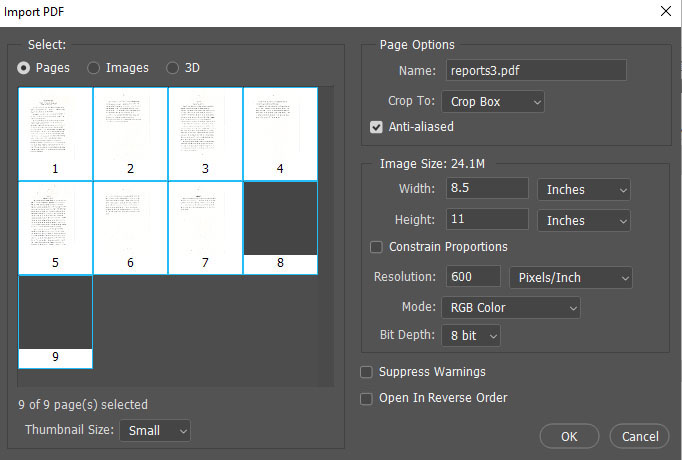
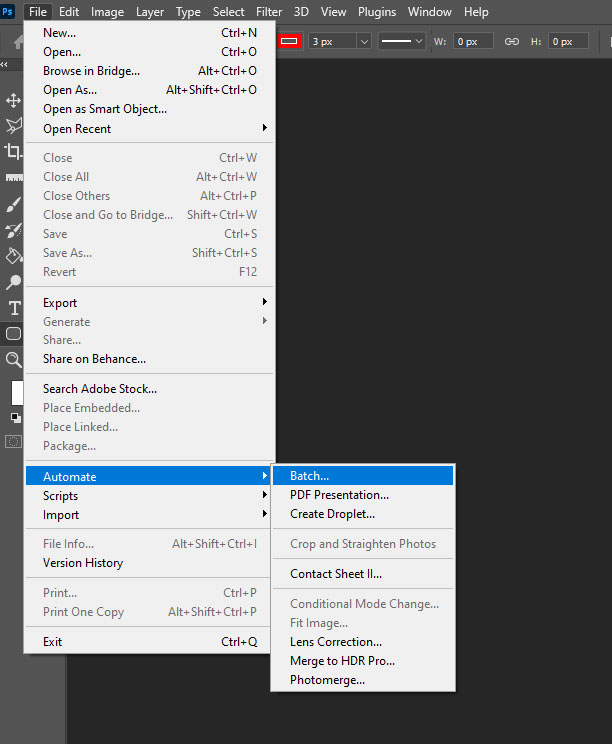
- Go to File>Automate>Batch.
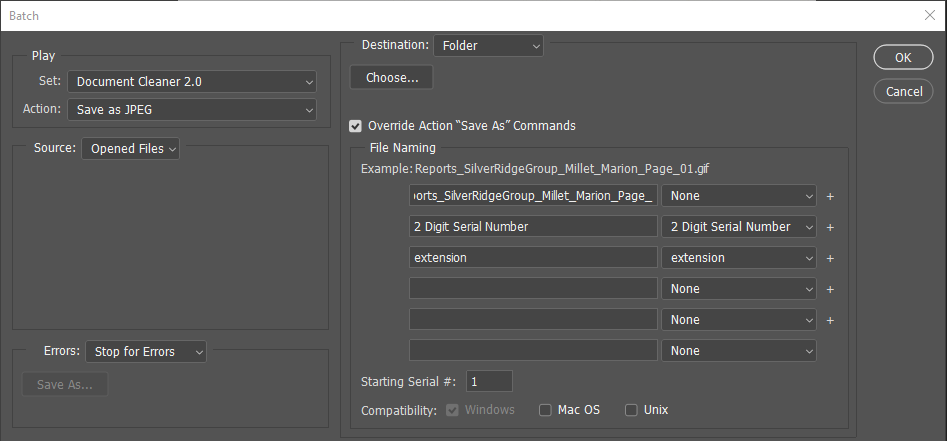
- Fill out the form as indicated in the image below:
- Set: Select Document Cleaner 2.0 from dropdown
- Action: Select Save as JPEG from dropdown
- Source: Select Opened files from dropdown
- Destination: Select 'Folder' from dropdown and select the folder destination by selecting 'Choose'.
- File naming: use the file naming conventions to name your file.
- *This applies to batch converting PDF documents with more than one page* Make sure that at the end of your file name that you have
Page_typed with no number following the underscore. The settings beneath the file name will auto fill in the page numbers and add the file extension at the end.
*If you have files that are not grouped pdf files* Fill out the form as indicated in the image below: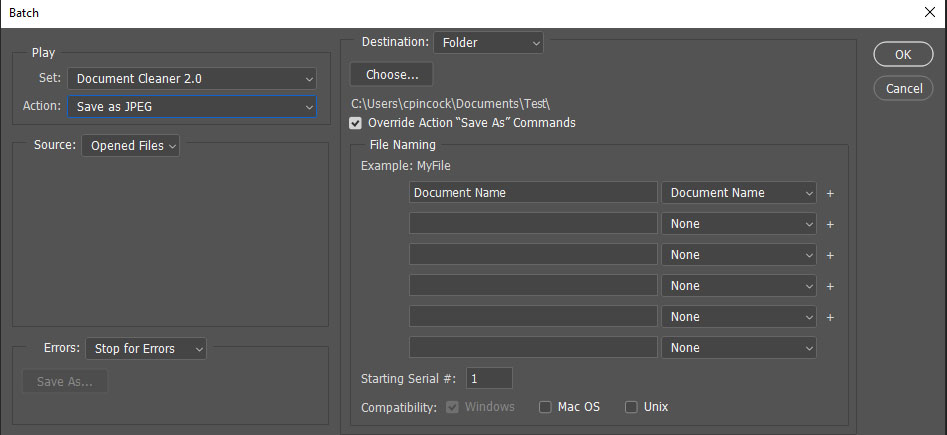
Same steps as the previous image, only the 'File Naming' section is different with only 'Document Name' selected from the dropdown. - Select ‘OK’ and let Photoshop do all of the work for you!
How to Batch Convert Files to JPF in Photoshop
If you haven't already installed Document Cleaner 2.0, please do so before proceeding beyond this point.
- Open the files you want to convert in Photoshop. Right-click on the file(s) you want to convert, and open with Photoshop.
- Go to File>Automate>Batch.
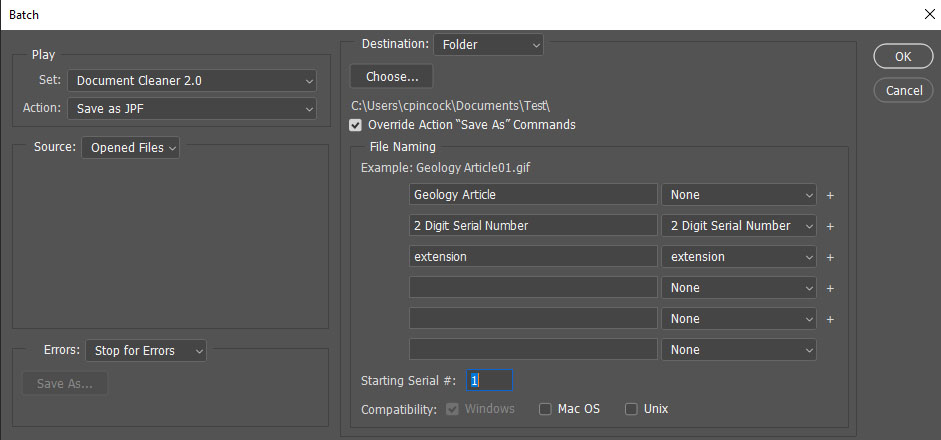
- Fill out the form as indicated in the image below:
- Set: Select Document Cleaner 2.0 from dropdown
- Action: Select Save as JPF from dropdown
- Source: Select Opened files from dropdown
- Destination: Select 'Folder' from dropdown and select the folder destination by selecting 'Choose'.
- File naming: use the file naming conventions to name your file.
- *This applies to batch converting PDF documents with more than one page* Make sure that at the end of your file name that you have
Page_typed with no number following the underscore. The settings beneath the file name will auto fill in the page numbers and add the file extension at the end.
*If you have files that are not grouped pdf files* Fill out the form as indicated in the image below:
Same steps as the previous image, only the 'File Naming' section is different with only 'Document Name' selected from the dropdown. - Select 'Ok' and let Photoshop do all of the work for you!
How to Create Macros and Conduct Batch Edits in Photoshop
If you haven't already installed Document Cleaner 2.0, please do so before proceeding beyond this point.
- Go to Windows>Actions.
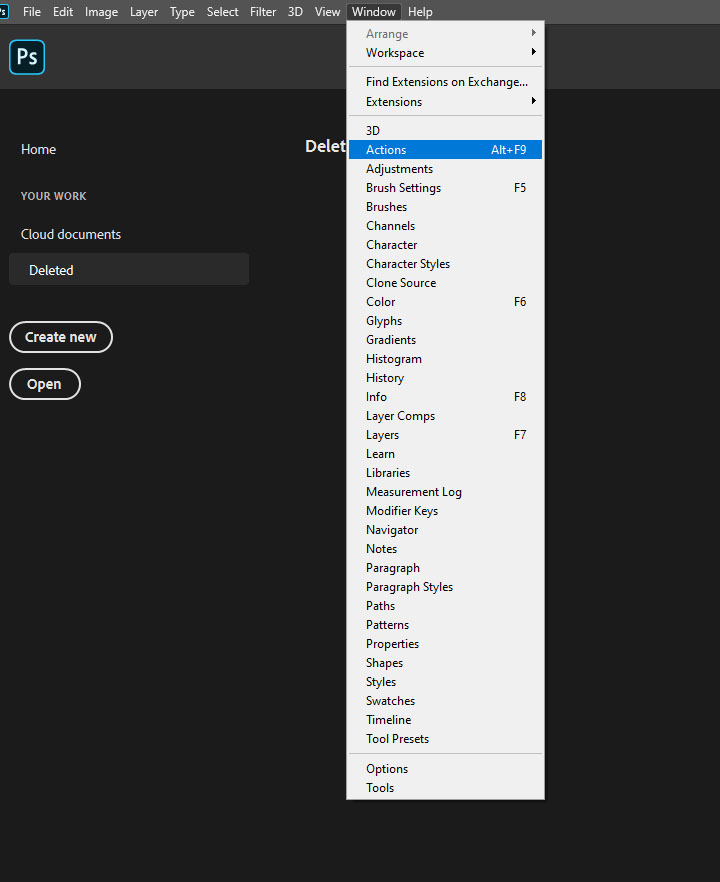
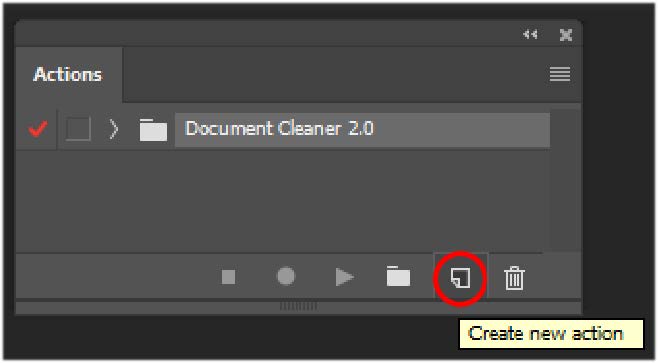
- Select the new action icon in the little actions window
- Name your action something simple that describes your action and then press "Record."
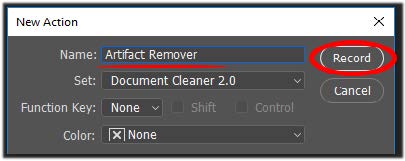
- Open a file in Photoshop to which you want to do a batch edit. Keep in mind that it has to be done perfectly when recording; no undoing is allowed.
- Once finished conducting all of the edits manually, press the square button in the Action Window to stop recording.
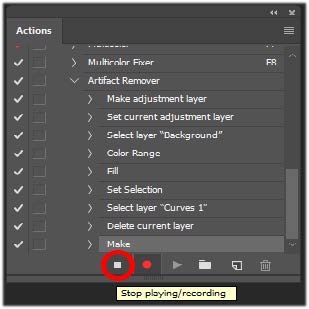
- Go to File>Automate>Batch.
- Fill out the following form as necessary.
- Select the correct Action, or the action you just created.
- Source: You may choose to have the macro apply to files you have opened or entire files an specific folder. Your choice.
- Destination: You may choose "Save and Close," which will save and close the file in the same location in which it was opened. Or you may choose "Folder" to specify a different folder to save all the edited pages.
- File Naming: You may be able to auto-name your files as long as a single file name can apply to all of the files to go through the macro. Be sure to add a serial number if that is the case.
- Make any other settings that you may find applicable to your files.
- Select OK and let Photoshop do the work for you!